Spektral connects to Figma through the Spektral Figma plugin, a small plugin you run inside your Figma file. It links the file to the Spektral desktop app over a local connection, so Spektral can import your variables, read the frame you have selected, and turn it into specs, tokens, and components. No account authorization, no data leaving your machine, and it works on every Figma plan.
Pair Figma with Spektral
- Install the plugin
The plugin is in private beta and is not yet listed on Figma Community. We'll send you the plugin files; in the Figma desktop app choose Plugins → Development → Import plugin from manifest… and select
manifest.json. It works on any Figma plan, including Starter — importing variables through the plugin does not need the Enterprise-only Variables REST API. - Run it in your file
With the Spektral desktop app open on the same computer, open your Figma file and run the plugin (Plugins → Development → Spektral). It connects automatically.
- Approve it once
The first connection raises an approval prompt in Settings → Figma. Click Allow and the pairing is remembered. Cmd/Ctrl + Alt + P re-runs your last plugin, so reconnecting later is one keystroke.
Import your variables
- Open Tokens and press Import from Figma
The button sits in the Tokens toolbar, beside New Brand and AI Generate.
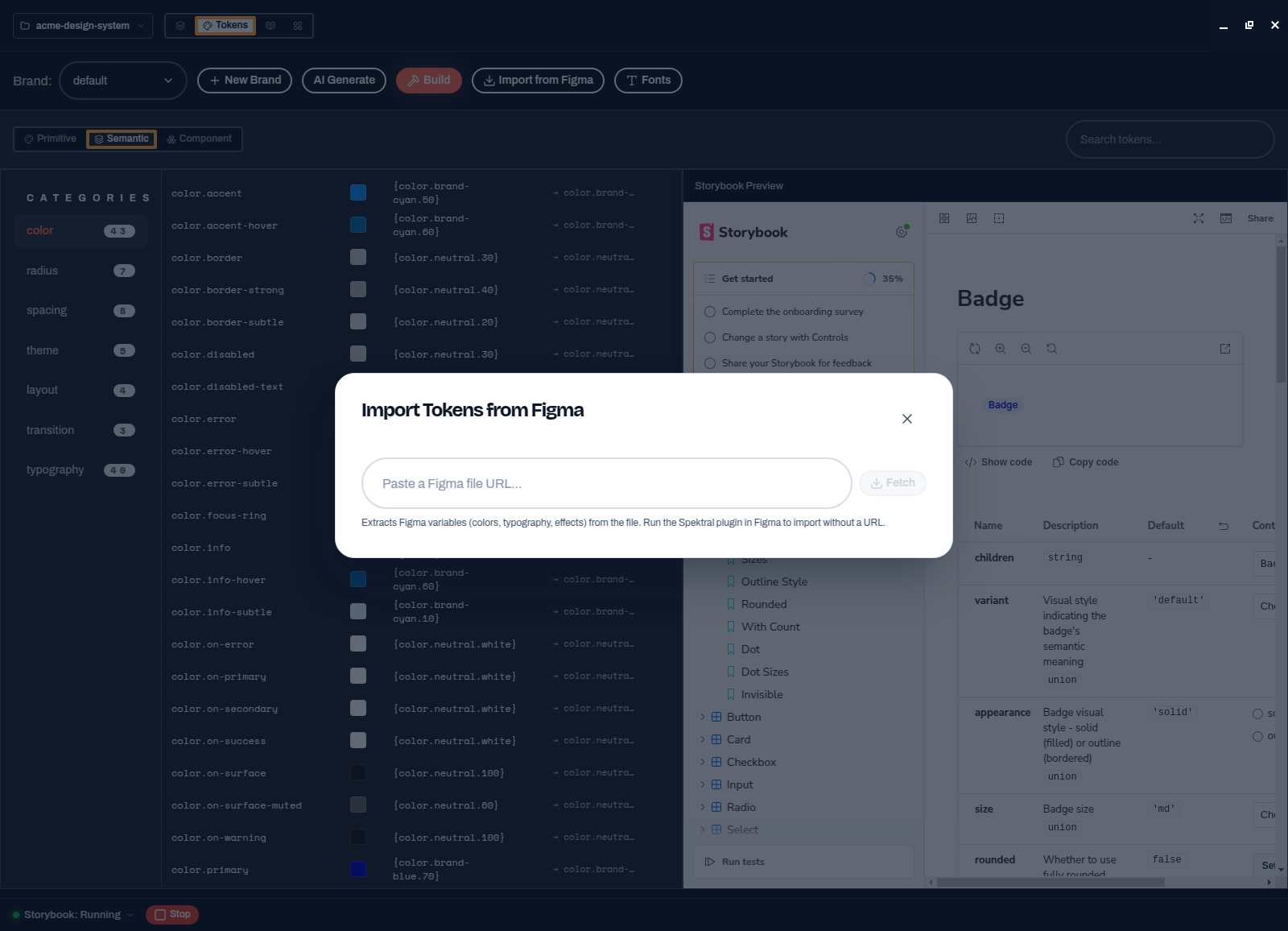
Paste a file URL, or run the plugin in Figma and import with no URL at all. - Paste a file URL, or use the plugin
Either fetch by URL, or run the Spektral plugin in the file you have open and import with no URL at all. Spektral extracts variables — colours, typography, effects — with aliases resolved, and maps them into the three-layer DTCG token set.
- Review and build
Imported values land in your token layers where you can rename or repoint them, exactly like tokens you wrote yourself. Press Build to push them into the library.
What You Can Do
Import variables
Pull your Figma variables, colors, numbers, strings, with aliases resolved, into Spektral's three-layer DTCG token system from the Tokens page. Local variables are read directly from your file, so this works on plans where Figma's REST API doesn't expose them.
Generate from selection
Select a frame or component in Figma and ask the agent to build it, no URL pasting. Spektral reads the layout tree, colors, typography, spacing, radii, shadows, and bound variables behind your selection, plus a rendered screenshot.
Send when you're ready
The plugin tracks your selection as you work, and its Send selection to Spektral button pushes the current frame across when you're ready. Designers stay in Figma; Spektral handles the translation.
Working With Figma Links
Figma links work through the plugin too, paste one into Spektral, or let the agent pick them up from elsewhere (a Jira ticket via an agent plugin, a work order, a chat message). As long as the linked file is open in Figma with the Spektral plugin running, Spektral extracts exactly the frame the link points at (the node-id in the URL), even if it's on a page you don't have focused, your current selection is only used when there's no link.
If the link points at a different file than the one open in Figma, Spektral stops with a clear error instead of extracting the wrong design, open the linked file, run the plugin there, and retry.
How It Connects
The plugin talks to the Spektral desktop app over a WebSocket on localhost:9474. Everything stays on your machine, Spektral reads only what you can see in the file, using your own Figma session. The one-time approval issues a pairing token the plugin stores in Figma's plugin storage; you can revoke it any time with Forget plugin pairing in Settings → Figma.
Figma (your file)                      Spektral desktop app
Spektral plugin: ws://localhost:9474 -> local bridge
  variables, selection, screenshots ->    tokens, specs, components
What This Is: And Isn't
Figma import is one-directional and on demand. You bring variables and frames into Spektral when you choose to; nothing is written back to your Figma file, and nothing runs in the background.
That is deliberate. Once a design system's truth lives in two places, every change needs reconciling in both: which is the handoff problem again, wearing a different hat. Figma stays where it's strongest: exploring and agreeing on the design. Spektral holds the tokens, specs, and code that ship.
Troubleshooting
- "Waiting for approval" in the plugin, open Spektral, go to Settings → Figma, and click Allow on the pairing request.
- "Connecting to Spektral…" never completes, make sure the Spektral desktop app is running on the same computer. The plugin retries automatically.
- "No variables found", variables import reads the file's local variables. Open the file that owns the variable collections (usually your token library file) and run the plugin there.
- "This Figma link points to a different file", the link targets a file other than the one open in Figma. Open the linked file, run the Spektral plugin in it, and retry.
- "Node … was not found in this file", the link's frame doesn't exist in the open file (wrong file, or the frame was deleted). Check the link and open the file it belongs to.
- Connection was declined by mistake, run the plugin again; a fresh approval request appears in Spektral.
- Switching computers or resetting, click Forget plugin pairing in Settings → Figma, then approve the plugin again on its next connection.